FAQs
My iPhone won't turn on, here's how to fix it.
Looking for more details about our services, pricing, or repairs? Our FAQ section covers everything you need to know. If you can't find what you're looking for, feel free to reach out – our team is here to assist you with any queries you may have. We’re committed to providing clear and helpful information to make your experience as smooth as possible

Trust.
Quality.
Expertise.
Innovation.
iPhone troubleshooting if it doesn't turn on
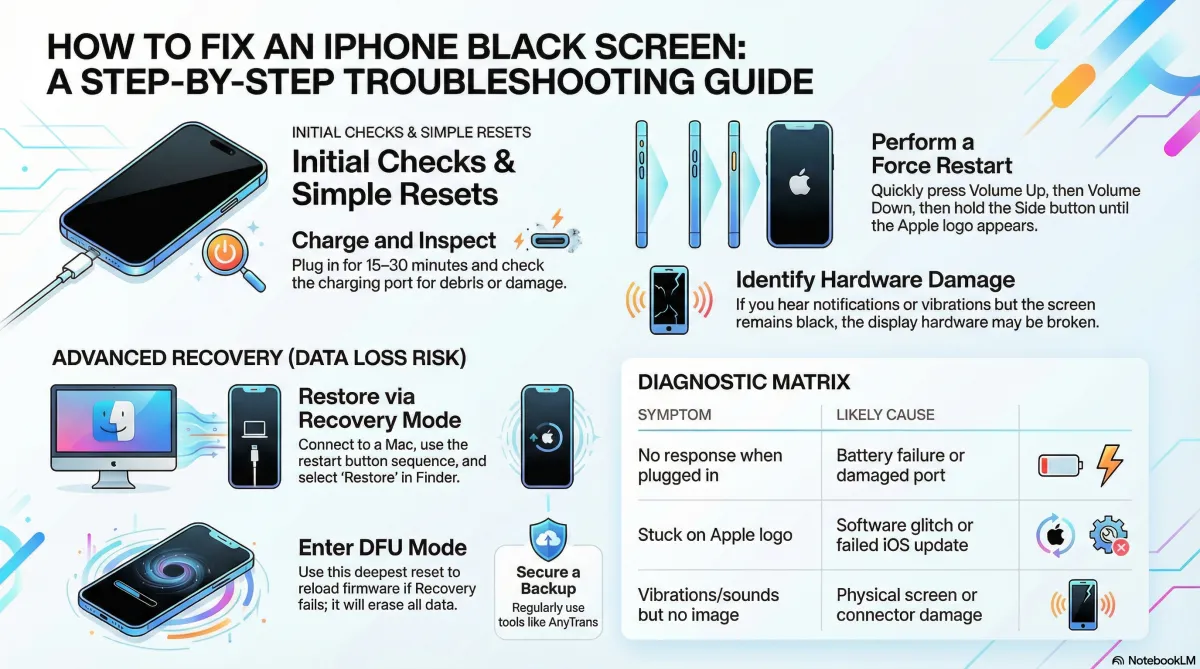
The iPhone Revival Guide: Is It Hardware or Software?
1. Decoding the Black Screen Mystery
Encountering an unresponsive, black screen on your iPhone is a high-stress event, but from a technical diagnostic perspective, it is rarely a total loss. Most failures are not random; they are symptomatic of specific issues within the device's ecosystem. This diagnostic protocol is designed to help you methodically identify the root cause, distinguishing between issues you can resolve at home and those that require clinical intervention.
By following this guide, you can triage your device through the four primary categories of failure:
• Battery Failures: Drained cells or a complete failure of the battery to hold a charge.
• Physical or Water Damage: Compromised hardware resulting from impact, moisture, or extreme temperature exposure.
• Software Glitches: System-level crashes, corrupted iOS updates, or third-party app malfunctions that freeze the display.
• Internal Connectivity: Loose or damaged cables connecting the display or battery to the logic board.
The objective is to rule out the simplest variables first—starting with the lifeblood of the device: power.
2. Phase 1: The Power Audit (Hardware Basics)
Before assuming the internal hardware has failed, you must verify the integrity of your charging environment. Many "dead" phones are simply victims of an underpowered or faulty charging chain. We prioritize wall outlets over computer USB ports because wall outlets provide a higher, more stable current necessary to jumpstart a deeply discharged battery.
Charging Checklist
Inspect the Cable: Check for visible fraying.
Note that cables often have "frayed internal contacts" while appearing intact on the outside;
if in doubt, swap the cable.
Verify the Power Source: Connect to a known-working wall outlet to ensure the device isn't fighting an underpowered USB port.
Secure Connections: Confirm that the cable is seated firmly in both the power brick and the iPhone.
Clear the Port: Use a non-conductive tool (like a toothpick and read our detailed guide here ) to check the charging port for lint or debris.
Even a small amount of pocket lint can prevent the pins from making full contact.
Plug your iPhone into a wall outlet and leave it undisturbed for at least 15 to 30 minutes. This allows the battery to reach a minimum voltage threshold before it can even power the display to show a charging icon. If you see bent pins or corrosion inside the port during your inspection, do not plug it in—this requires immediate professional service to avoid a short circuit.
Once power is confirmed as available, if the screen remains dark, we must determine if the device's "digital brain" has simply locked up.
3. Phase 2: Digital Resuscitation (Software Troubleshooting)
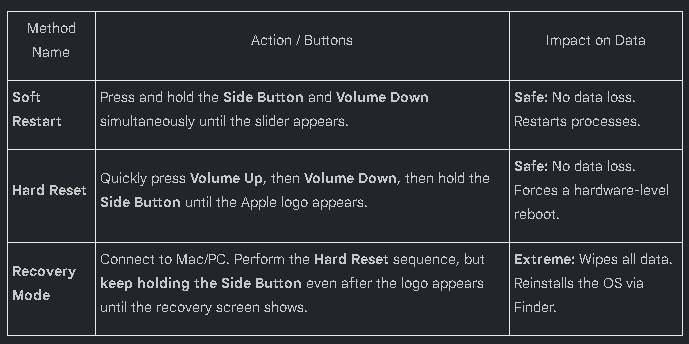
A system-level crash can mimic a hardware failure by leaving the screen black while the processor is actually stuck in a loop. We address this through a hierarchy of resets. For modern iPhones (iPhone 8 and later, including the X/11/12/13/14/15 series), the button sequences are precise.
Software Troubleshooting Comparison
The DFU (Device Firmware Upgrade) Mode
If Recovery Mode fails, DFU mode is the deepest reset possible. It bypasses the iBoot bootloader to interact directly with the hardware.
1. Connect your iPhone to your Mac via USB and open Finder.
2. Press and quickly release Volume Up.
3. Press and quickly release Volume Down.
4. Press and hold the Side Button until the screen goes completely black.
5. While still holding the Side Button, press and hold Volume Down.
6. After exactly five seconds, release the Side Button but continue holding Volume Down.
7. The screen must stay black. If the Apple logo appears, you held the button too long; restart at step 1.
If the screen is black and Finder detects the phone, follow the restore prompts.
Both Recovery Mode and DFU Mode are destructive.
These processes will completely wipe all personal data and settings. Use these only if you have a backup or if the device is otherwise unusable. Following a DFU restore, the device will require a few days to recalibrate the battery—allow it to cycle from 0% to 100% a few times to stabilize.
If these digital resets fail to trigger any response from the screen, the issue is no longer a matter of code, but a matter of physical hardware.
4. Phase 3: The Hardware "Smoking Gun"
When software resets yield no results, we look for physical indicators of failure. Often, the device is actually "on," but the bridge between the logic board and the display is broken.
Identifying Physical Failure
Impact Evidence: Look for hairline cracks or dents in the chassis. Even if the glass is intact, an internal drop can dislodge the display connectors.
Environmental Stress: Check for moisture in the SIM tray or signs of overheating. Heat can desolder delicate internal connections.
The Boot Loop: If the Apple logo appears but the phone cycles back to black, this indicates a hardware component (often the battery or storage) is failing its power-on self-test.
The Ghost in the Machine
If your screen is black, but the phone vibrates, makes notification sounds, or is recognized by a computer, you have a "Ghost in the Machine" scenario.
The Diagnosis: This is a definitive sign of display hardware failure or damaged display.
The Specialist Recommendation: If these symptoms exist, bypass all software resets and DFU attempts. They will not fix a physical disconnection and will only risk data loss. Proceed directly to professional hardware repair.
5. Final Verdict: Home Fix vs. Professional Service
Use this matrix to determine if your device can be saved on your desk or if it requires a phone shop to help.
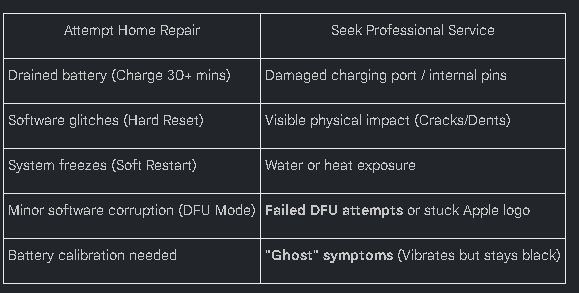
If the device remains unresponsive after a successful DFU attempt, or if the screen fails to initialize despite audible notifications, the internal components have likely reached a terminal state for home repair and i would recommend visiting us or a phone shop near you.

1. How long will my phone repair take?
The time required for a repair depends on the type of issue your device is facing. For common repairs like screen replacements or battery changes, it typically takes between 30 minutes to 2 hours. More complex issues may take a bit longer, but we’ll always provide an estimated timeline when you bring your phone in.
2. Do you offer a warranty on repairs?
Yes, we offer a warranty on all our repairs. Depending on the type of repair, our warranty ranges from 30 days to 1 year. If there’s an issue with the repair within the warranty period, we’ll fix it free of charge.
3. Can you fix my phone if it has water damage?
Yes, we specialize in repairing water-damaged devices. While we can’t guarantee a 100% fix, our technicians will carefully assess the damage and do everything possible to restore your phone to working condition.
4. Do I need an appointment for a repair?
While appointments are not required, we recommend scheduling one to ensure you get quick and efficient service. Walk-ins are always welcome, but booking an appointment helps reduce wait times.
5. Will you use original parts for repairs?
We use only high-quality replacement parts for all repairs. While we strive to use original parts whenever possible, we also offer premium quality third-party components that meet the same standards as the original parts.
6. Is it cheaper to repair my phone or buy a new one?
In most cases, repairing your phone is much more cost-effective than buying a new one. Many common repairs, such as screen replacements or battery changes, are affordable and can extend the life of your device. Our team will always provide a fair quote before proceeding with any repairs.
7. Can you repair phones from all brands?
Yes, we specialize in repairs for all major phone brands, including Apple, Samsung, Google, Huawei, and more. Our technicians are well-trained and experienced in handling a wide variety of devices, so you can trust us to fix your phone, no matter the brand.
We are a repair centre,
NOT a phone shop
We specialize in providing comprehensive mobile repair services to help you get the most out of your device. Whether it’s screen repairs, battery optimization.

Your trusted partner for fast, reliable, and affordable mobile repairs. We’re here to keep your device in top shape, so you stay connected.

Quick links
Services
© Mend My iPhone. 2026. All Rights Reserved. There is NO authority but YOURSELF