
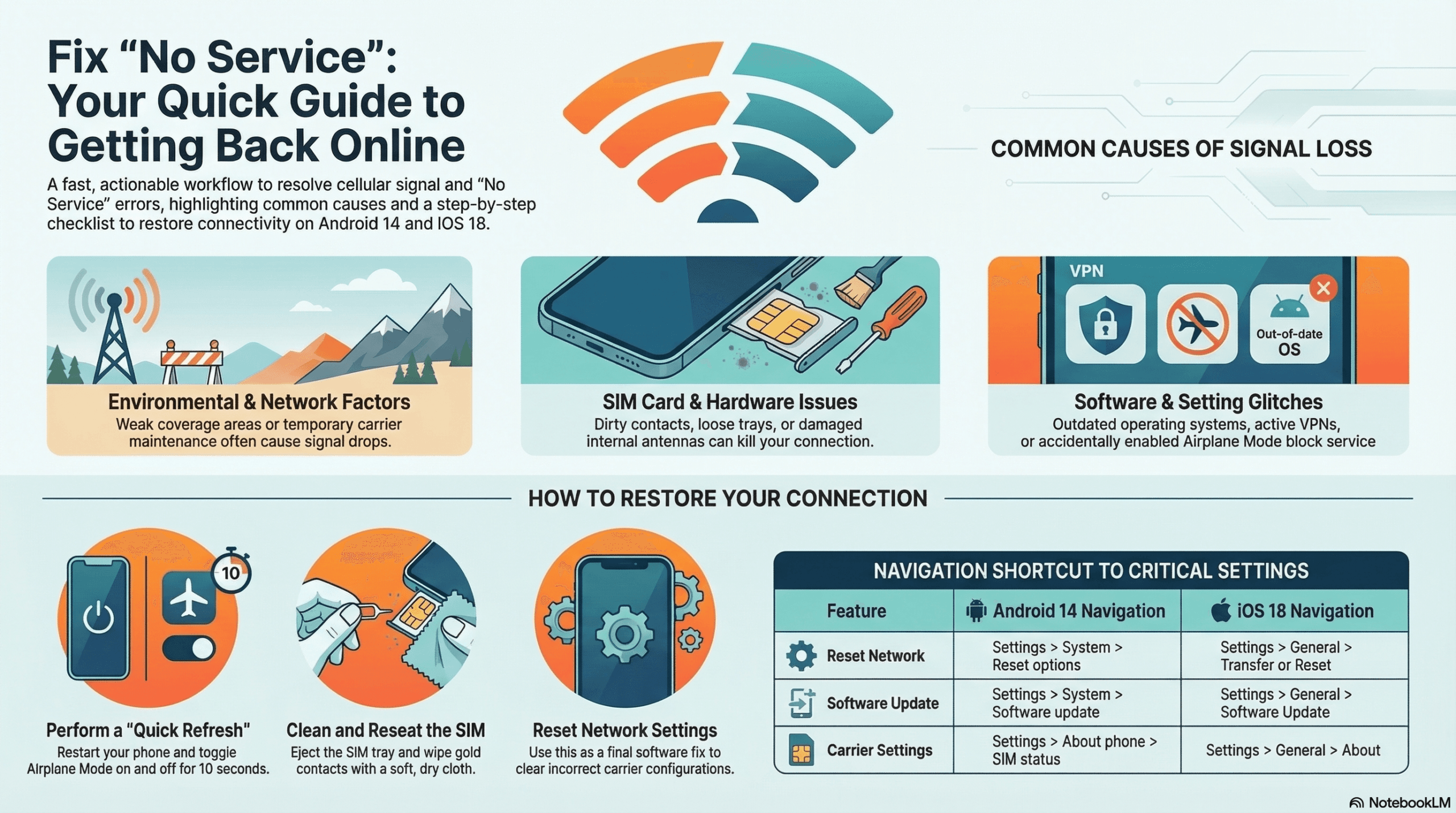

Fix “No Service” on Your Phone and Get Back Online in Minutes
Seeing “No Service” or “No Signal” on your phone? This happens to almost everyone at some point. Calls stop working. Texts fail. Mobile data drops.
Good news: most of the time, you can fix it yourself.
Here’s how, step by step, for both Android 14 and iOS 18.
—
🧩 Common Causes of “No Service”
Poor Signal or Network Outage
You might be in a weak coverage area, or your carrier is doing temporary maintenance.
SIM Card Problems
A dirty, damaged, or loose SIM card can kill your connection.
Software Glitches or Outdated System
Bugs or old versions of Android/iOS can break network functions.
Airplane Mode Left On
This shuts off Wi-Fi, Bluetooth, and cellular all at once.
Wrong Network Settings
Custom APN configs, manual network selections, or roaming errors can block service.
Carrier Settings or Account Issues
Your provider may need to push updated settings or fix something on their end.
Hardware Damage
Dropped your phone recently? Had it repaired? The antenna may be damaged.

📱 Fixing “No Service” on Android 14
1. Restart Your Phone
A restart clears temporary system errors.
-Hold Power → Tap Restart (or Reboot)
2. Check Airplane Mode
-Swipe down twice to open Quick Settings
-Make sure the Airplane icon is off
-Toggle it on, wait 10 seconds, then toggle off
3. Reseat or Clean the SIM Card
-Power off the phone
-Remove the SIM tray with an ejector tool
-Gently wipe the SIM’s gold contacts with a soft, dry cloth
-Reinsert firmly and power on
⚙️ Tip: Still seeing “No Service”? Try your SIM in another phone.
–Works in another phone → Your device likely has a hardware fault
–Fails in another phone → You probably need a replacement SIM from your carrier
4. Update Your Software
-Go to Settings → System → Software update
-Download and install any available updates
Android 14 regularly pushes network stability fixes through updates.
5. Reset Network Settings
-Open Settings → System → Reset options → Reset Wi-Fi, mobile & Bluetooth
-Confirm and restart
This clears incorrect APNs and cached carrier data.
6. Update Carrier Settings
-Go to Settings → About phone → SIM status or Carrier settings
-Follow any on-screen prompts
7. Contact Your Network Provider
If nothing above works, call your carrier. Ask:
-Are there outages in my area?
-Can you re-provision my SIM or account?
-Do you offer an eSIM replacement?

🍎 Fixing “No Service” on iPhone (iOS 18)
1. Restart Your iPhone
-Press and hold Side button + Volume button → slide to power off
-Wait 10 seconds, then turn it back on
2. Check Airplane Mode
-Swipe down from the top-right (Face ID models) or up from the bottom (Home button models)
-Make sure Airplane Mode is off
-Toggle it on for 10 seconds, then off
3. Remove and Reinsert the SIM Card
-Power off your iPhone
-Use a SIM tool or paperclip to eject the tray
-Wipe the SIM clean and reinsert securely
-Turn the device back on
⚙️ Using an eSIM?
Go to Settings → Mobile Service → Your Plan → Remove/Reactivate eSIM if your plan isn’t showing properly.
4. Update iOS
-Go to Settings → General → Software Update
-Tap Download and Install if an update is available
Apple frequently fixes cellular bugs through iOS updates, especially after carrier rollouts.
5. Reset Network Settings
-Go to Settings → General → Transfer or Reset iPhone → Reset → Reset Network Settings
-Enter passcode → Confirm
This resets Wi-Fi, cellular, and VPN settings to default.
6. Update Carrier Settings
-Go to Settings → General → About
-Wait 10 seconds; if an update prompt appears, tap Update
Carrier updates are small but critical, especially after switching networks or replacing a SIM.
7. Contact Apple or Your Carrier
If “No Service” continues:
-Visit an Apple Store or authorised repair technician to test for hardware damage (antenna module or logic board)
-Contact your mobile network for SIM or provisioning support
—
⚡ Extra Fixes Worth Trying (Android & iPhone)
-Toggle Mobile Data off and on again
-Set Network Mode to Automatic instead of LTE only
-Remove any VPN profiles (they can interfere with mobile data)
-Check if your phone is carrier-locked (especially after repairs or buying used)
-Confirm your account is active; unpaid bills or expired plans can disable service
—
🧠 When to Visit a Technician
Done all the steps above and still stuck on “No Service”?
You may have antenna, SIM reader, or baseband IC failure. Visit a trusted phone repair shop (like Mend My iPhone, Market Weighton) for a proper diagnosis.

🏁 Quick Reference
–Weak signal → Poor coverage → Move to an open area
–SIM fault → Dirty or damaged SIM → Clean, reinsert, or replace
–Software glitch → OS or carrier bug → Update software
–Network settings → Misconfigured → Reset network settings
–Hardware fault → Antenna or board issue → Technician diagnosis
Leave a Reply